资源
课程
P1_latex01-LaTeX 环境的安装与配置
安装
仅安装 即可,不要与等混合安装!
本身封装了。
编译代码
创建test.tex文件,并输入如下内容:
\documentclass{article}

\begin{document}

Hello \LaTeX

\end{document}在TERMINAL(终端)中输入latex test.tex以编译test.tex
PS D:\Study\0th-year-master\LateX\20230109> latex test.tex
This is pdfTeX, Version 3.14159265-2.6-1.40.16 (MiKTeX 2.9)
(test.tex
LaTeX2e <2016/03/31>
Babel <3.9q> and hyphenation patterns for 1 language(s) loaded.
Document Class: article 2014/09/29 v1.4h Standard LaTeX document class
("C:\Users\gzjzx\AppData\Local\Programs\MiKTeX 2.9\tex/latex\base\size10.clo"))

No file test.aux.
[1] (test.aux) )
Output written on test.dvi (1 page, 300 bytes).
Transcript written on test.log.此时会生成test.dvi文件,继续输入dvipdfmx test.dvi继续编译生成test.pdf文件:
PS D:\Study\0th-year-master\LateX\20230109> dvipdfmx test.dvi
test.dvi -> test.pdf
[1]
2875 bytes written或者直接输入xlelatex test.tex直接将test.tex编译生成test.pdf文件:
PS D:\Study\0th-year-master\LateX\20230109> xelatex test.tex
This is XeTeX, Version 3.14159265-2.6-0.99992 (MiKTeX 2.9)
entering extended mode
(test.tex
LaTeX2e <2018-04-01> patch level 5
("C:\Users\gzjzx\AppData\Local\Programs\MiKTeX 2.9\tex/latex\base\article.cls"
Document Class: article 2014/09/29 v1.4h Standard LaTeX document class
("C:\Users\gzjzx\AppData\Local\Programs\MiKTeX 2.9\tex/latex\base\size10.clo"))
 (test.aux) [1] (test.aux) )
Output written on test.pdf (1 page).
Transcript written on test.log.也可直接写一个批处理文件bulid.bat完成操作:
latex test.tex
dvipdfmx test.dvi
del *.aux *.dvi *.log
或
xelatex test.tex
del *.aux *.dvi *.log随后直接在TERMINAL(终端)中输入build命令完成编译
在VS Code中可以直接使用Ctrl+Alt+B编译
生成中文
首先需要保证tex文件使用的是utf-8编码。
使用\usepackage{ctex}引入宏包以支持中文。
\documentclass{article}

\usepackage{ctex}

\begin{document}

你好, \LaTeX

\end{document}
使用 TeXstudio
P2_latex02-LaTeX 源文件的基本结构
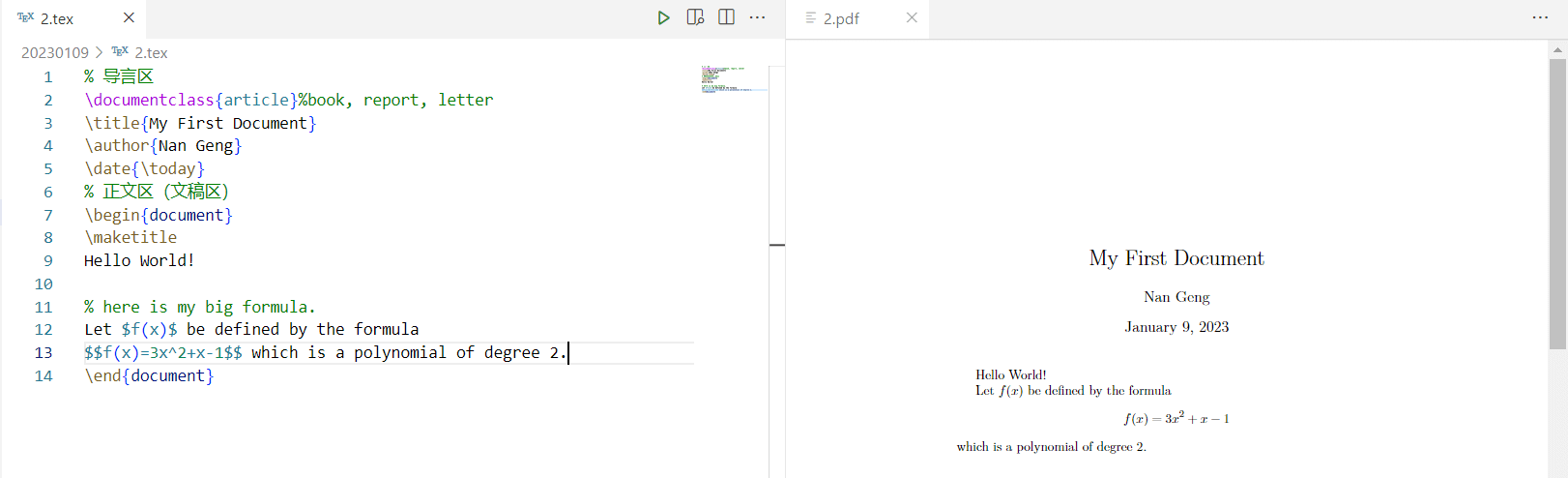
% 导言区
\documentclass{article}  % book, report, letter
\title{My First Document}
\author{Nan Geng}
\date{\today}
% 正文区(文稿区)
\begin{document}
\maketitle
Hello World!

% here is my big formula.
Let $f(x)$ be defined by the formula
$$f(x)=3x^2+x-1$$ which is a polynomial of degree 2.
\end{document}分为导言区和正文区。
P3_latex03-LaTeX 中的中文处理办法
处理中文
确定编译器是否为XeLaTeX且编码是否为UTF-8。
在导言区使用
\documentclass{article}

\usepackage{ctex}
或
\documentclass{ctexart}以支持中文。
% 导言区
\documentclass{ctexart}%book, report, letter

% \usepackage{ctex}

\newcommand\degree{^\circ}

\title{\heiti 杂谈勾股定理}
\author{张三}
\date{\today}
% 正文区(文稿区)
\begin{document}
\maketitle

勾股定理可以用现代语言表述如下:

直角三角形斜边的平方等于两腰的平方和。

可以用符号语言表述为:设直角三角形 $ABC$,其中 $\angle
  C=90\degree$,则有:
\begin{equation}  % 用于产生带编号的行间公式
  AB^2 = BC^2 + AC^2.
\end{equation}
\end{document}- 在导言区使用
\newcommand\degree{^\circ}定义\degree,否则会出现编译错误。 - 使用
\begin{equation}和\end{equation}产生带编号的行间公式。
查看帮助文档
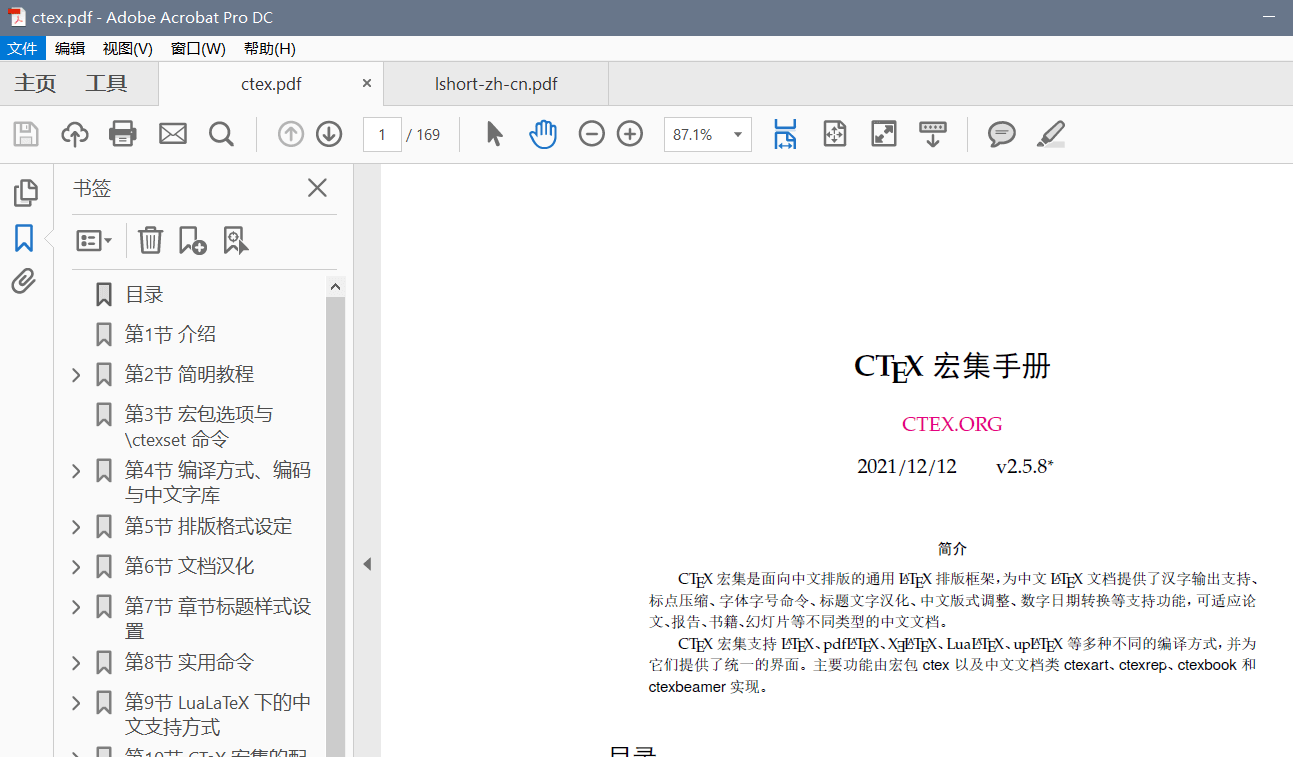
在TERMINAL(终端)中输入texdoc ctex命令:
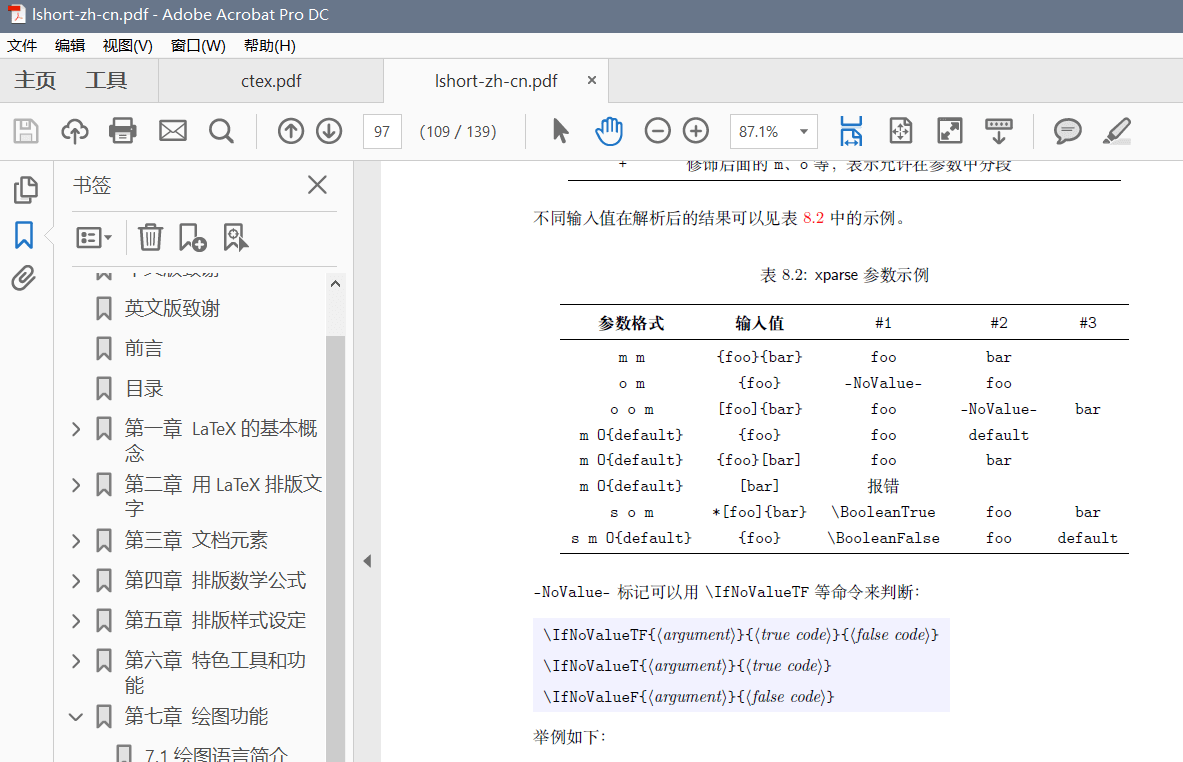
输入texdoc lshort-zh命令:
P4_latex04-LaTeX 的字体字号设置
字体属性
在 中,一个字体有 5 种属性:
-
字体编码
- 正文字体编码:OT1、T1、EU1 等
- 数学字体编码:OML、OMS、OMX 等
-
字体族
- 罗马字体 Roman Family
\textrm:笔画起始处有装饰 - 无衬线字体 Sans Serif Family
\textsf:笔画起始处无装饰 - 打字机字体 Typewriter Family
\texttt:每个字符宽度相同,又称等宽字体
- 罗马字体 Roman Family
-
字体系列
- 粗细
- 宽度
-
字体形状
- 直立 Upright Shape
- 斜体 Italic Shape
- 伪斜体 Slanted Shape
- 小型大写 Small Caps Shape
-
字体大小
字体族设置
注意修饰符及其作用域范围:
% 字体族设置(罗马字体 Roman Family、无衬线字体 Sans Serif Family、打字机字体 Typewriter Family)
\textrm{Roman Family}
\textsf{Sans Serif Family}
\texttt{Typewriter Family}

\rmfamily Roman Family
  {\sffamily Sans Serif Family}
  {\ttfamily Typewriter Family}

  {\sffamily who you are? you find self on everyone around.
    take you as the same as others!}

  {\ttfamily Are you wiser than others?
    definitely no. insome ways, may it is true.
    what can you achieve? aluxurious house?
    a brillilant car? an admirable career?who knows? }
字体系列设置(粗细、宽度)
% 字体系列设置(粗细、宽度)
\textmd{Medium Series}  \textbf{Boldface Series}

{\mdseries Medium Series} {\bfseries Boldface Series}
字体形状(直立、斜体、伪斜体、小型大写)
\textup{Upright Shape}
\textit{Italic Shape}
\textsl{Slanted Shape}
\textsc{Small Caps Shape}

{\textup Upright Shape}
{\textit Italic Shape}
{\textsl Slanted Shape}
{\textsc Small Caps Shape}
中文字体
% 中文字体
{\songti 宋体}
{\heiti 黑体}
{\fangsong 仿宋}
{\kaishu 楷书}

中文字体的\textbf{粗体}是{\heiti 黑体},\textit{斜体}是{\kaishu 楷体}。
字体大小
% 字体大小
{\tiny Hello}\\
{\scriptsize Hello}\\
{\footnotesize Hello}\\
{\small Hello}\\
{\normalsize Hello}\\
{\large Hello}\\
{\Large Hello}\\
{\LARGE Hello}\\
{\huge Hello}\\
{\Huge Hello}\\
中文字号设置命令
% 中文字号设置命令
\zihao{-0} 你好!
自定义字体
过多的修饰符不符合的思想,使用\newcommand自定义字体。
导言区中:
\newcommand{\myfont}{\textbf{\textsf{Fancy Text}}}会将正文区所有\myfont替换为\textbf{\textsf{Fancy Text}}
% 使用自定义字体
\myfont
{% pdf 4.pdf%}
P5_latex05-LaTeX 文档的基本结构
分节
在正文区中,使用\section{}列提纲,分节,可以使用\subsection{}和\subsubsection{}继续分节。
\documentclass{article}

\usepackage{ctex}

\begin{document}

\section{引言}
\section{实验方法}
\section{实验结果}
\subsection{数据}
\subsection{图表}
\subsubsection{实验条件}
\subsubsection{实验过程}
\section{结论}
\section{致谢}

\end{document}
{% pdf 5.1.pdf%}
设置格式
使用\documentclass{ctexart}会更改格式,但是这个格式可以自行设置。
在导言区设置格式。将内容与格式分离,是的基本思想。
\documentclass{ctexart}
% =====设置标题的格式======
\ctexset{
    % 修改 section。
    section={
        name={,、},
        number={\chinese{section}},
        format=\heiti\raggedright\zihao{-4}, % 设置 section 标题为黑体、右对齐、小 4 号字
        aftername=\hspace{0pt},
        beforeskip=1ex,
        afterskip=1ex
    },
    % 修改 subsection。
    subsection={
        name={,、},
        number={\arabic{subsection}},
        format=\heiti\zihao{5}, % 设置 subsection 标题为黑体、5 号字
        aftername=\hspace{0pt},
        beforeskip=1ex,
        afterskip=1ex
    }
}

\begin{document}

\section{引言}
近年来,随着逆向工程和三维重建技术的发展和应用,
获取现实世界中物体的三维数据的方法越来越多的关注和研究,
很多研究机构和商业公司都陆续推出了自己的三维重建系统。

近年来,随着逆向工程和三维重建技术的发展和应用,\\
获取现实世界中物体的三维数据的方法越来越多的关注和研究。
\par 很多研究机构和商业公司都陆续推出了自己的三维重建系统。

\section{实验方法}
\section{实验结果}
\subsection{数据}
\subsection{图表}
\subsubsection{实验条件}
\subsubsection{实验过程}
\section{结论}
\section{致谢}

\end{document}- 使用空行或
\par可以另起一段 - 使用
\\会换行,但是不会另起一段
{% pdf 5.2.pdf%}
设置目录
使用\documentclass{ctexbook}和\tableofcontents生成目录。
\documentclass[UTF8,a4paper,15pt,titlepage,oneside]{ctexbook}

\begin{document}
\tableofcontents
\chapter{绪论}
\section{引言}
近年来,随着逆向工程和三维重建技术的发展和应用,
获取现实世界中物体的三维数据的方法越来越多的关注和研究,
很多研究机构和商业公司都陆续推出了自己的三维重建系统。

近年来,随着逆向工程和三维重建技术的发展和应用,\\
获取现实世界中物体的三维数据的方法越来越多的关注和研究。
\par 很多研究机构和商业公司都陆续推出了自己的三维重建系统。

\section{实验方法}
\section{实验结果}
\subsection{数据}
\subsection{图表}
\section{结论}
\section{致谢}

\end{document}
{% pdf 5.3.pdf%}
P6_latex06-LaTeX 中的特殊字符
- 特殊字符
- 空白符号
- 空行分段,多个空行等同 1 个
- 自动缩进,绝对不能使用空格代替
- 英文中多个空格处理为 1 个空格,中文中空格将被忽略
- 汉字与其它字符的间距会自动由 XeLaTex 处理
- 禁止使用中文全角空格
- 控制符
- 排版符号
- 标志符号
- 引号
- 连字符
- 非英文字符
- 重音符号(以 o 为例)
- 空白符号
\documentclass{article}

\usepackage{ctex}
\usepackage{xltxtra}
\usepackage{texnames}
\usepackage{mflogo}

\begin{document}

\section{空白符号}
% 1em(当前字体中 M 的宽度)
a\quad b

% 2em
a\qquad b

% 约为 1/6 个 em
a\,b a\thinspace b

% 0.5 个 em
a\enspace b

% 空格
a\ b

% 硬空格
a~b

% 1pc=12pt=4.2188mm
a\kern 1pc b

a\kern -1em b  % 可以为负数

a\hskip 1em b

a\hspace{35pt}b

% 占位宽度
a\hphantom{xyz}b

% 弹性长度
a\hfill b

\section{\LaTeX 控制符}
\# \$ \% \{ \} \~{} \_{} \^{} \textbackslash \&

\section{排版符号}
\S \P \dag \ddag \copyright \pounds

\section{\TeX 标志符号}
% 基本符号
\TeX{} \LaTeX{} \LaTeXe{}

% xltxtra 宏包提供
\XeLaTeX

% texnames 宏包提供
\AmSTeX{} \AmS-\LaTeX{}
\BibTeX{} \LuaTeX{}

% mflogo 宏包提供
\METAFONT{} \MF{} \MP{}

\section{引号}
`'``''``你好''

\section{连字符}
- -- ---

\section{非英文字符}
\oe \OE \ae \AE \aa \AA \o \O \l \L \ss \SS !`?`

\section{重音符号(以 o 为例)}
\`o \'o \^o \''o \~o \=o \.o \u{o} \v{o} \H{o} \r{o} \t{o} \b{o} \c{o} \d{o}

\end{document}
{% pdf 6.pdf%}
P7_latex07-LaTeX 中的插图
-
使用
\usepackage{graphicx}实现插图 -
语法:
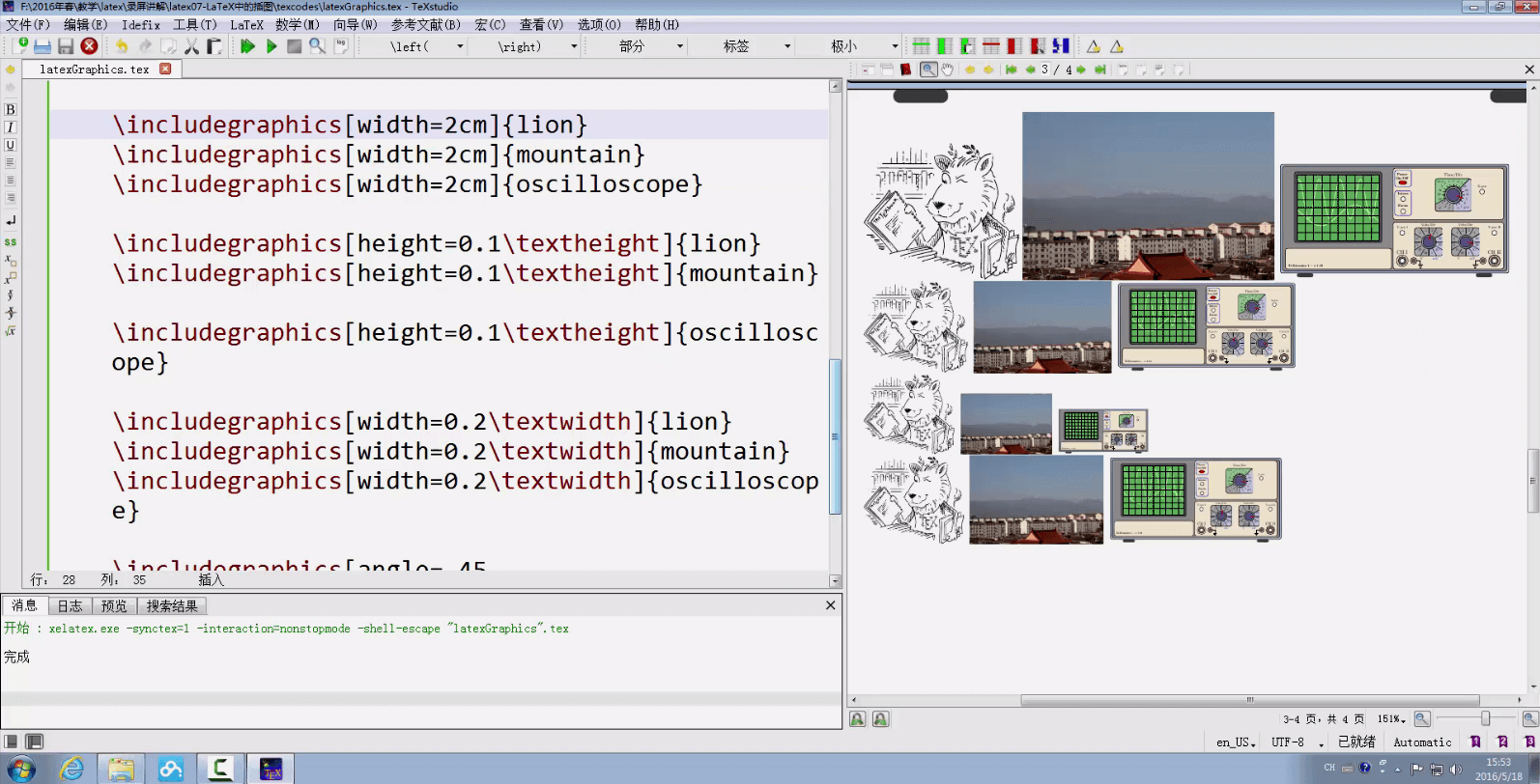
\includegraphics[< 选项 >][< 文件名 >]-
选项可以有:
scale=0.3缩放 0.3 倍height=2cm高 2cmwidth=2cm宽 2cmheight=0.1\textheight0.1 倍行高width=0.2\textwidth0.2 倍行宽angle=-45, width0.2\textwidth顺时针旋转 45°,并且 0.2 倍行宽
使用终端命令
texdoc graphicx查看帮助文档。 -
文件名可加后缀可不加
-
-
格式:EPS、PDF、PNG、JPEG、BMP
\documentclass{ctexart}
\usepackage{graphicx}
\graphicspath{{figures/}, {pics/}}  % 图片在当前目录下的 figures 或 pics 目录

\begin{document}
\LaTeX{}中的插图:

\includegraphics[scale=0.3]{lion}
\end{document}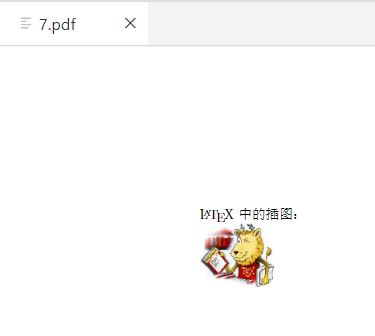
P8_latex08-LaTeX 中的表格
\begin{tabular}[<垂直对齐方式>]{<列格式说明>}
	<表项> & <表项> & ... & <表项> \\
\end{tabular}- 用
\\表示换行 - 用
&表示不同的列 - 列格式说明:
l本列左对齐c本列居中对齐r本列右对齐p{<宽>}本列宽度固定,能够自动换行
\documentclass{ctexart}

\begin{document}
\begin{tabular}{|l|c|c|c|p{1.5cm}|}
  \hline \hline
  姓名 & 语文 & 数学 & 外语 & 备注         \\
  \hline
  张三 & 87   & 100  & 93   & 优秀         \\
  \hline
  李四 & 75   & 64   & 52   & 补考另行通知 \\
  \hline
  王二 & 80   & 82   & 78   &              \\
  \hline
\end{tabular}
\end{document}
{% pdf 8.pdf%}
P9_latex09-LaTeX中的浮动体
要灵活地使用图像和表格的管理,还需要使用浮动体环境。包含figure浮动体环境和table浮动体环境。
浮动体:
- 实现灵活分页(避免无法分割的内容产生的页面留白)
- 给图表添加标题
- 交叉引用
figure环境(table环境与之类似)
\begin{figure}[<允许位置>]
	<任意内容>
\end{figure}<允许位置>参数(默认tbp)
h,此处(here)-代码所在的上下文位置t,页顶(top)-代码所在页面或之后页面的顶部b,页底(bottom)-代码所在页面或之后页面的底部p,独立一页(page)-浮动页面
标题控制(caption、bicaption等宏包)
并排与子图表(subcaption、subfig、floatrow等宏包
绕排(picinpar、wrapfig等宏包)
使用\ref{}和\label{}进行交叉引用,通常要编译两次才生效。
\documentclass{ctexart}
\usepackage{graphicx}
\graphicspath{{figures/}}

\begin{document}

\LaTeX{}中\TeX 系统的吉祥物---小狮子见图\ref{fig-lion}。

\begin{figure}[htbp]
  \centering
  \includegraphics[scale=0.3]{lion}
  \caption{\TeX 系统的吉祥物---小狮子}\label{fig-lion}
\end{figure}

遥看太白,看积雪皑皑,别有一番风景(图\ref{fig-mountain})

\begin{figure}[htbp]
  \centering
  \includegraphics[scale=0.3]{mountain}
  \caption{太白山}\label{fig-mountain}
\end{figure}

当然,在\LaTeX{}中也可以使用表\ref{tab-score}所示的表格。

\begin{table}[h]
  \centering
  \caption{考试成绩单}\label{tab-score}
  \begin{tabular}{|l|c|c|c|p{1.5cm}|}
    \hline \hline
    姓名 & 语文 & 数学 & 外语 & 备注         \\
    \hline
    张三 & 87   & 100  & 93   & 优秀         \\
    \hline
    李四 & 75   & 64   & 52   & 补考另行通知 \\
    \hline
    王二 & 80   & 82   & 78   &              \\
    \hline
  \end{tabular}
\end{table}

\end{document}
{% pdf 9.pdf%}
P10_latex10-LaTeX数学公式初步
\documentclass{article}

\usepackage{ctex}
\usepackage{amsmath}

\begin{document}
\section{简介}
\LaTeX{}将排版内容分为文本模式和数学模式。
文本模式用于普通文本排版,数学模式用于数学公式排版。
\section{行内公式}
\subsection{美元符号}
交换律是 $a+b=b+a$,如 $1+2=2+1=3$。
\subsection{小括号}
交换律是 \(a+b=b+a\),如\(1+2=2+1=3\)。
\subsection{math环境}
交换律是 \begin{math}a+b=b+a\end{math},如
\begin{math}1+2=2+1=3\end{math}。
\section{上下标}
\subsection{上标}
$3x^{20} - x + 2 = 0$

$3x^{3x^{20} - x + 2} - x + 2 = 0$
\subsection{下标}
$a_0, a_1, a_2$

$a_0, a_1, a_2, ..., a_{3x^{20} - x + 2}$
\section{希腊字母}
$\alpha$
$\beta$
$\gamma$
$\epsilon$
$\pi$
$\omega$

$\Gamma$
$\Delta$
$\Theta$
$\Pi$
$\Omega$

$\alpha^3 + \beta^2 + \gamma = 0$

\section{数学函数}
$\log$
$\sin$
$\cos$
$\arcsin$
$\arccos$
$\arctan$
$\ln$

$\sin^2x+\cos^2x=1$
$y=\arcsin x$

$y=\sin^{-1}x$

$y=\log_2x$

$y=\ln x$

$\sqrt{2}$ $\sqrt{x^2+y^2}$ $\sqrt{2+\sqrt{2}}$ $\sqrt[4]{x}$
\section{分式}
大约是原体积的$3/4$。
大约是原体积的$\frac{3}{4}$。

$\frac{x}{x^2 + x + 1}$

$\frac{\sqrt{x-1}}{\sqrt{x+1}}$

$\frac{1}{1 + \frac{1}{x}}$

$\sqrt{\frac{x}{x^2 + x + 1}}$
\section{行间公式}
\subsection{美元符号}
交换律是
$$a+b=b+a$$
如
$$1+2=2+1=3$$
\subsection{中括号}
交换律是
\[a+b=b+a\]
如
\[1+2=2+1=3\]
\subsection{displaymath环境}
交换律是
\begin{displaymath}
  a+b=b+a,
\end{displaymath}
如
\begin{displaymath}
  1+2=2+1=3.
\end{displaymath}
\subsection{自动编号公式equation环境}
交换律见式\ref{eq:commutative}
\begin{equation}
  a+b=b+a \label{eq:commutative}
\end{equation}
\subsection{不编号公式equation*环境} % 需要使用amsmath宏包
交换律见式\ref{eq:commutative2}
\begin{equation*}
  a+b=b+a \label{eq:commutative2}
\end{equation*}

公式的编号与交叉引用也是自动实现的,
大家在排版中,要习惯与采用自动化的方式处理图、表、公式的编号与交叉引用。
\end{document}
{% pdf 10.pdf%}
latex11-LaTeX数学公式的矩阵
矩阵环境:
- 用
&分割列 - 用
\\分割行
\documentclass{ctexart}

\usepackage{amsmath}

\newcommand{\adots}{\mathinner{\mkern2mu
\raisebox{0.1em}{.}
\mkern2mu\raisebox{0.4em}{.}
\mkern2mu\raisebox{0.7em}{.}\mkern1mu}}

\begin{document}
\section{matrix环境}
\[
  \begin{matrix}
    0 & 1 \\
    1 & 0
  \end{matrix}
\]

\section{pmatrix环境}
\[
  \begin{pmatrix}
    0 & -1 \\
    1 & 0
  \end{pmatrix}
\]

\section{bmatrix环境}
\[
  \begin{bmatrix}
    0 & -1 \\
    1 & 0
  \end{bmatrix}
\]

\section{Bmatrix环境}
\[
  \begin{Bmatrix}
    0 & -1 \\
    1 & 0
  \end{Bmatrix}
\]

\section{vmatrix环境}
\[
  \begin{vmatrix}
    0 & -1 \\
    1 & 0
  \end{vmatrix}
\]

\section{Vmatrix环境}
\[
  \begin{Vmatrix}
    0 & -1 \\
    1 & 0
  \end{Vmatrix}
\]

\section{可以使用上下标}
\[
  A = \begin{pmatrix}
    a_{11}^2 & a_{12}^2 & a_{13}^2 \\
    0        & a_{22}   & a_{23}   \\
    0        & 0        & a_{33}
  \end{pmatrix}
\]

\section{常用省略号:$\backslash$dots,$\backslash$vdots,$\backslash$ddots}
没有$\backslash$adots,需要手动定义。
\[
  A = \begin{bmatrix}
    a_{11} & \dots  & a_{1n} \\
    \adots & \ddots & \vdots \\
    0      &        & a_{nn}
  \end{bmatrix}_{n \times n}
\]

\section{分块矩阵(矩阵嵌套)}
\[
  \begin{pmatrix}
    \begin{matrix}1&0\\0&1\end{matrix} & \text{\Large 0}                      \\
    \text{\Large 0}                    & \begin{matrix} 1&0\\0&-1\end{matrix}
  \end{pmatrix}
\]

\section{三角矩阵}
\[
  \begin{pmatrix}
    a_{11}                                             & a_{12} & \cdots & a_{1n} \\
                                                       & a_{22} & \cdots & a_{2n} \\
                                                       &        & \ddots & \vdots \\
    \multicolumn{2}{c}{\raisebox{1.3ex}[0pt]{\Huge 0}} &        & a_{nn}
  \end{pmatrix}
\]

\section{跨列的省略号} % \hdotsfor{columns}
\[
  \begin{pmatrix}
    1 & \frac 12 & \dots & \frac 1n \\
    \hdotsfor{4}                    \\
    m & frac m2  & \dots & \frac mn
  \end{pmatrix}
\]

\section{行内小矩阵(smallmatrix)环境}
复数 $z = (x, y)$ 可也用矩阵
\begin{math}
  \left(
  \begin{smallmatrix}
    x & -y \\
    y & -x
  \end{smallmatrix}
  \right)
\end{math}
来表示。

\section{array环境(类似于表格环境tabular)}
\[
  \begin{array}{r|r}
    \frac{1}{2} & 0            \\
    \hline
    0           & -\frac a{bc} \\
  \end{array}
\]

\section{用array环境构造复杂矩阵}
\[
  % @{<内容>}-添加任意内容,不占表项计数
  % 此处添加一个负值空白,表示向左移-5pt的距离
  \begin{array}{c@{\hspace{-5pt}}l}
    % 第1行,第1列
    \left(
    \begin{array}{ccc|ccc}
        a                                                 & \cdots & a      & b      & \cdots & b      \\
                                                          & \ddots & \vdots & \vdots & \adots          \\
                                                          & a      & b                                 \\ \hline
                                                          &        &        & c      & \cdots & c      \\
                                                          &        &        & \vdots &        & \vdots \\
        \multicolumn{3}{c|}{\raisebox{2ex}[0pt]{\Huge 0}} & c      & \cdots & c
      \end{array}
    \right)
    % 第1行,第2列
    \begin{array}{l}
      % \left. 仅表示与 \right\} 配对,什么都不输出
      \left. \rule{0mm}{7mm}\right\}p \\
      \\
      \left.\rule{0mm}{7mm}\right\}q
    \end{array}
    \\[-5pt]
    % 第2行第1列
    \begin{array}{cc}
      \underbrace{\rule{17mm}{0mm}}_m &
      \underbrace{\rule{17mm}{0mm}}_m
    \end{array}
     & % 第2行第2列
  \end{array}
\]

\end{document}
{% pdf 11.pdf%}
latex12-LaTeX数学公式的多行公式
\documentclass{ctexart}

\usepackage{amsmath}
\usepackage{amssymb}

\begin{document}
\section{gather 标准多行公式}
\subsection{gather 带编号}
\begin{gather}
  a + b = b + a \\
  ab ba
\end{gather}

\subsection{gather* 不带编号}
\begin{gather*}
  3+5=5+3=8 \\
  3 \times 5 = 5 \times 3
\end{gather*}

\subsection{在换行符前使用 notag 阻止编号}
\begin{gather}
  3^2 + 4^2 = 5^2 \notag \\
  5^2 + 12^2 = 13^2 \notag \\
  a^2 + b^2 = c^2
\end{gather}

\section{align 对齐多行公式}
\subsection{align 带编号}
\begin{align}
  x & = t + \cos t + 1 \\
  y & = 2\sin t
\end{align}

\subsection{align* 不带编号}
\begin{align*}
  x & = t  & x & = \cos t    & x & =t       \\
  y & = 2t & y & = \sin(t+1) & y & = \sin t
\end{align*}

\section{split 环境(对齐采用 align 环境的方式,编号在中间)}
\begin{equation}
  \begin{split}
    \cos 2x &= \cos^2x - \sin^2x \\
    &= 2\cos^2x - 1
  \end{split}
\end{equation}

\section{cases 环境}
分段函数,每行公式中使用 \& 分割为两部分,通常表示值和后面的条件。
\begin{equation}
  D(x) = \begin{cases}
    1, & \text{如果 } x \in \mathbb{Q};                    \\
    0, & \text{如果 } x \in \mathbb{R}\setminus\mathbb{Q}.
  \end{cases}
\end{equation}
\end{document}
{% pdf 12.pdf%}
P13_latex13-LaTeX中的参考文献BibTex
直接在tex文件中管理
\begin{thebibliography}{99}  % 这个数字99 指的是参考文献的项目按照数字进行编号, 并且最多为99个, 如果你有更多的项目, 把这个数字改大一点就行了
	\bibitem[记号]{引用标志}文献条目1
    \bibitem[记号]{引用标志}文献条目2
    ...
\end{thebibliography}
其中文献条目包括:作者,题目,出版社,年代,版本,页码等。
引用时可以采用:\cite{引用标志1, 引用标志2, ...}
\documentclass{ctexart}

\begin{document}
引用一篇文章\cite{article1} 引用一本书\cite{book1}等

\begin{thebibliography}{99}
  \bibitem{article1}陈立辉,苏伟,蔡川,陈晓云.
  \emph{基于 LaTex 的 web 数学公式提取方法研究}[J]。计算机科学。2014(06)

  \bibitem{book1}william H.Press,Saul A. Teukolsky,William T. Vetterling,Brian P.Elannery,
  \emph{Numerical Recipes js Edition:
    The Art of Scientific Computing}
  Cambridge University Press, New York,2007.

  \bibitem{latexGuide} Kopka Helmut, w.Daly Patrick,
  \emph{Guide to \LaTeX}, $4^{th}$ Edition.
  Available at \texttt{http://www.amazon.com}.

  \bibitem{latexMath} Graetzer George, \emph{Math Into \LaTeX},
  BirkhAauser Boston; 3 edition (June 22, 2000).
\end{thebibliography}
\end{document}
{% pdf 13.1.pdf%}
使用 BibTeX
在test.bib文件中输入如下内容:
@book{mittelbach2004,
  title     = {The {{\LaTex}} Companion},
  publisher = {Addison-wesley},
  year      = {2004},
  author    = {Frank Mittelbach and Michel Goossens},
  series    = {Tools and Techniques for Computer Typesetting},
  address   = {Boston},
  edition   = {Second}
}需要多次编译:
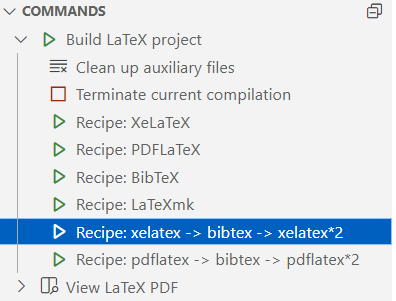
\documentclass{ctexart}

\bibliographystyle{plain}  % 可选选项 plain unsrt alpha abbrv

\begin{document}
这是一个参考文献的引用:\cite{mittelbach2004}
\bibliography{test}
\end{document}- 使用
\bibliography{test}以引用test.bib - 使用
\cite{mittelbach2004}引用mittelbach2004
{% pdf 13.2.pdf%}
使用google学术或百度学术等获得bib格式文件:
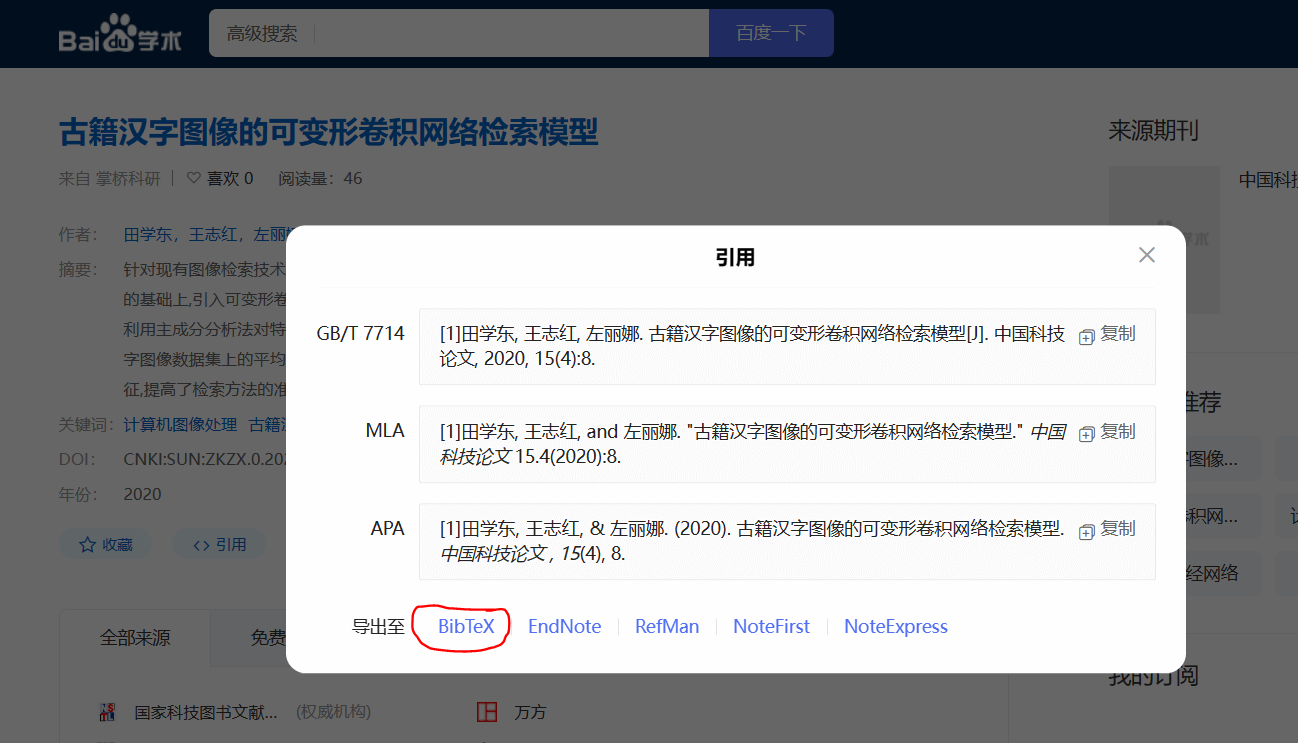
-
使用
\noctite{*}在参考文献中显示正文中未引用的文献。 -
使用
zotero从网站中批量获取文献的BibTeX。 -
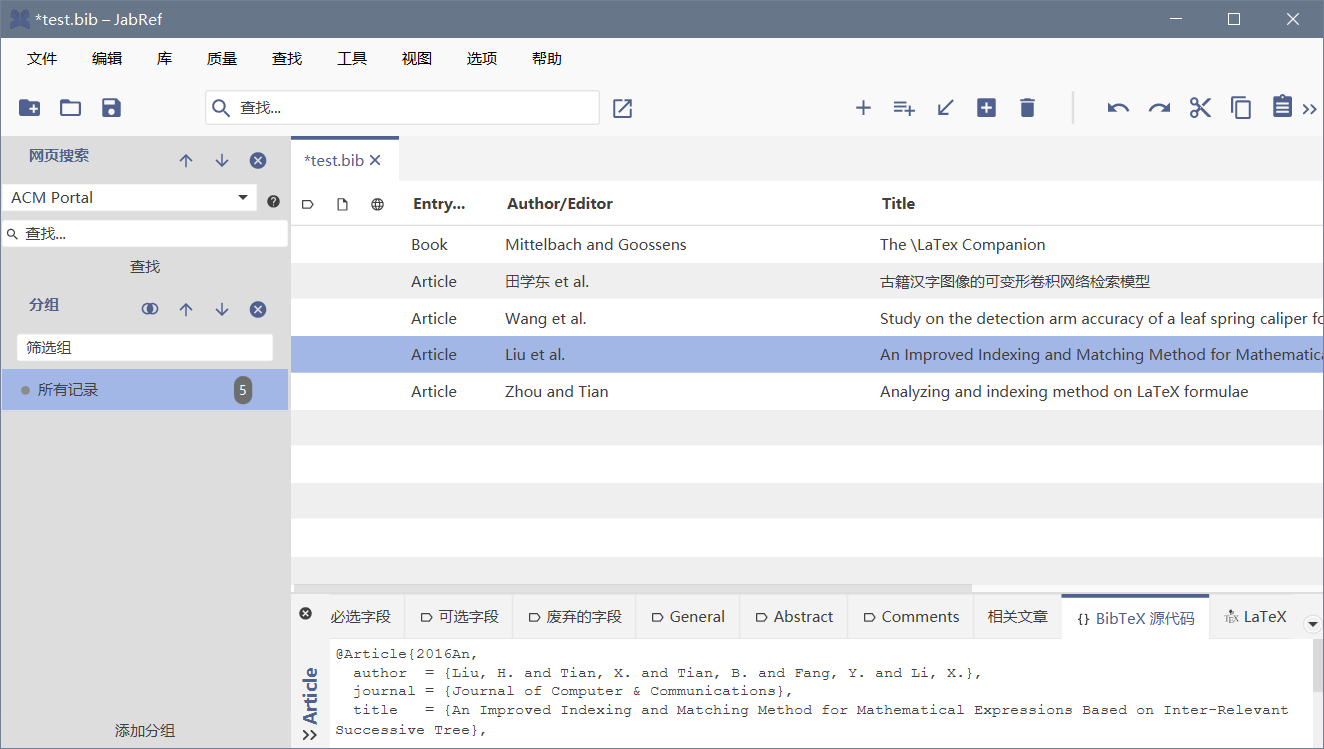
使用
JabRef管理参考文献中的.bib文件。
P14_latex14-LaTeX中的参考文献BibLaTeX
-
biblatex/biber新的 参考文献排版引擎。 -
样式文件(参考文献样式文件--
bbx文件,引用样式文件--cbx文件)使用 编写。 -
支持根据本地化排版,如:
biber -l zh__pinyin texfile,用于指定按拼音排序biber -l zh__stroke texfile,用于按笔画排序
试不出来orz..可能是bib文件本身有问题?
\documentclass{ctexart}

\usepackage[style=caspervector,
backend=biber,utf8,sorting=ecnty]{biblatex}

\addbibresource{test.bib}

\begin{document}
% 一次管理,多次应用
无格式化引用 \cite{2016An}

带方括号的引用 \parencite{2016Analyzing}

上标引用 \supercite{mittelbach2004}

\printbibliography[title = {参考文献}]  % 修改标题,默认为 References
\end{document}
P15_latex15-LaTeX中的自定义命令和环境
\newcommand定义命令- 命令只能由字母组成,不能以
\end开头 \newcommand<命令>[<参数个数>][<首参数默认值>]{<具体定义>}
定义命令和环境是进行格式定制、达成内容与格式分离目标的利器。使用自定义的命令和环境把字体、字号、缩进、对齐、间距等各种琐细的内容包装起来,赋以一个有意义的名字,可以使文挡结构清晰、代码整洁、易于维护。
在使用宏定义的功能时,要综合利用各种已有的命令、环境、变量等功能,事实上,前面所介绍的长度变量与盒子、字体字号等内容,大多并不直接出现在文档正文中,而主要都是用在实现各种结构化的宏定义里。
\documentclass{ctexart}

% \newcommand 可以是简单的字符串替换,例如:
% 使用 \PRC 相当于 People's Republic of \emph{China} 这一串内容
\newcommand\PRC{People's Republic of \emph{China}}

% \newcommand 也可以使用参数
% 参数个数可以从 1 到 9,使用时用 #1, #2, ..., #9 表示
\newcommand\loves[2]{#1 喜欢 #2}
\newcommand\hatedby[2]{#2 不受 #1 喜欢}

% \newcommand 的参数也可以有默认值
% 指定参数个数的同时指定了首个参数的默认值,那么这个命令的
% 第一个参数就成为可选的参数(要使用中括号指定)
\newcommand\love[3][喜欢]{#2 #1 #3}

% \renewcommand-重定义命令
% 与 \newcommand 命令作用和用法相同,但只能用于已有命令
% \renewcommand<命令>[<参数个数>][<首参数默认值>]{<具体定义>}
\renewcommand\abstractname{内容简介}

% 定义和重定义环境
% \newenvironment<环境名称>}[<参数个数>][<首参数默认值>]
%   <环境前定义>
%   <环境后定义>
% renewenvironment{<环境名称>}[<参数个数>][<首参数默认值>]
% {<环境前定义>}
% {<环境后定义>}

% 为 book 类中定义摘要(abstract)环境
\newenvironment{myabstract}[1][摘要]%
  {\small
    \begin{center}\bfseries #1\end{center}%
    \begin{quotation}}%
    {\end{quotation}}

% 环境参数只有<环境前定义>中可以使用参数,
% <环境后定义>中不能再使用环境参数。
% 如果需要,可以先把前面得到的参数保存在一个命令中,在后面使用:
\newenvironment{Quotation}[1]%
{\newcommand\quotesource{#1}%
      \begin{quotation}}
        {\par\hfill---《\textit{\quotesource}》
      \end{quotation}}

\begin{document}

\PRC

\loves{猫儿}{鱼}

\hatedby{猫儿}{萝卜}

\love{猫儿}{鱼}

\love[最爱]{猫儿}{鱼}

\begin{abstract}
  这是一段摘要...
\end{abstract}

\begin{myabstract}
  这是一段自定义摘要...
\end{myabstract}

\begin{Quotation}{易$\cdot$乾}
  初九,潜龙勿用。
\end{Quotation}

\end{document}
{% pdf 15.pdf%}